
Install and first launch
Download the app for macOS, Windows, or Linux and open it like any other program. There's no terminal, Docker, or localhost setup.
Picking a model on first launch
An AI role-playing game needs a language model to write the story. On first launch Plottery reads your VRAM and RAM, then shows a welcome screen with two suggested models and a Best fit badge on the file size it measured room for. Pick one and press Download and continue, or go straight to browsing all models or connecting an API server.
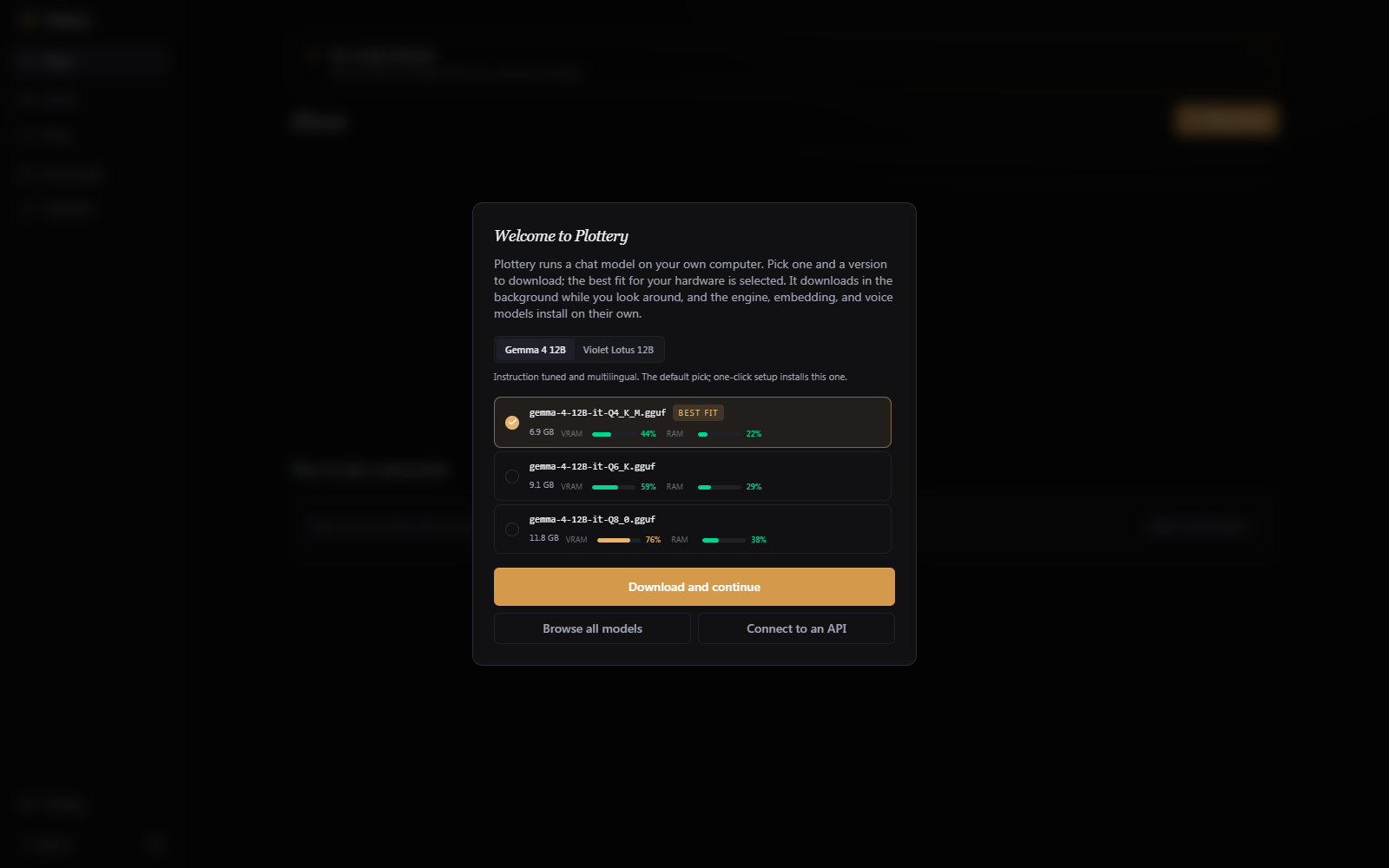
Everything else installs on its own in the background: the inference engine that runs the model, the embedding model used for memory, and the voice models. A Downloads entry appears while anything is installing in the background. You can replace the model you picked at any time (see AI models).
Playing offline
Once the app, a model, and the voice models are on disk, playing needs no connection. You can write, take turns, hear narration, and edit your saves with the network off. Signing in, browsing the community content, and downloading more models are the parts that need an internet connection.
Updates
The app checks for a newer version each time it starts. The inference engine is checked separately, on every startup and again once a day while the app is open; when a newer build exists, Settings > Model library offers to update to it, and you can also pick an older release to pin. However, updating the inference engine is optional, and might cause a model to stop working if the new engine is incompatible with it.