
Taking a turn
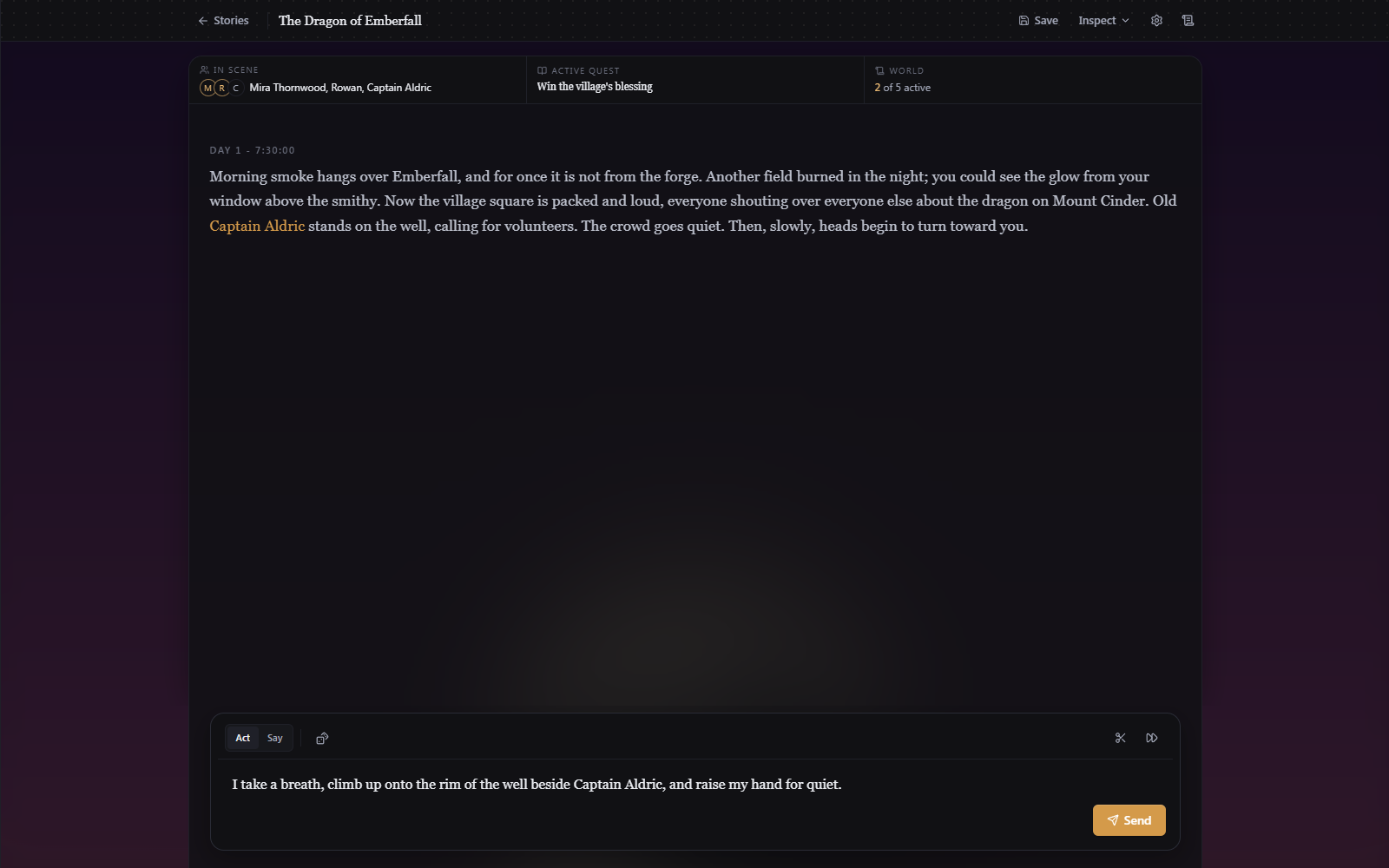
Play happens in the composer, the input bar pinned to the bottom of the transcript. You type, choose how it's phrased, optionally attach a dice roll, and send.
This page and the three after it describe story mode. If you're talking to a character instead, see Character chats, which has no narrator, no Act/Say, and no dice.
Act or Say
A toggle in the composer sets how your input is structured. Act is something your character does. Say is something your character says. In practice this toggle just puts "I say" in front of your input if you are in "Say" mode. This toggle is mainly for those who are new to Plottery. "Act" mode offers more control. For example you might want to write "I whisper" instead.
Pressing Shift+Enter and Ctrl/Cmd+Enter both add a line break.
Dice rolls
The dice button rolls a twenty-sided die and attaches the result to your next message, and you can clear it before sending. The narrator is told to shape the prose rather than deciding a rule outcome; nothing else in the game consumes the roll. Currently there is no limit to the amount of rerolls.

Watching the narrator write
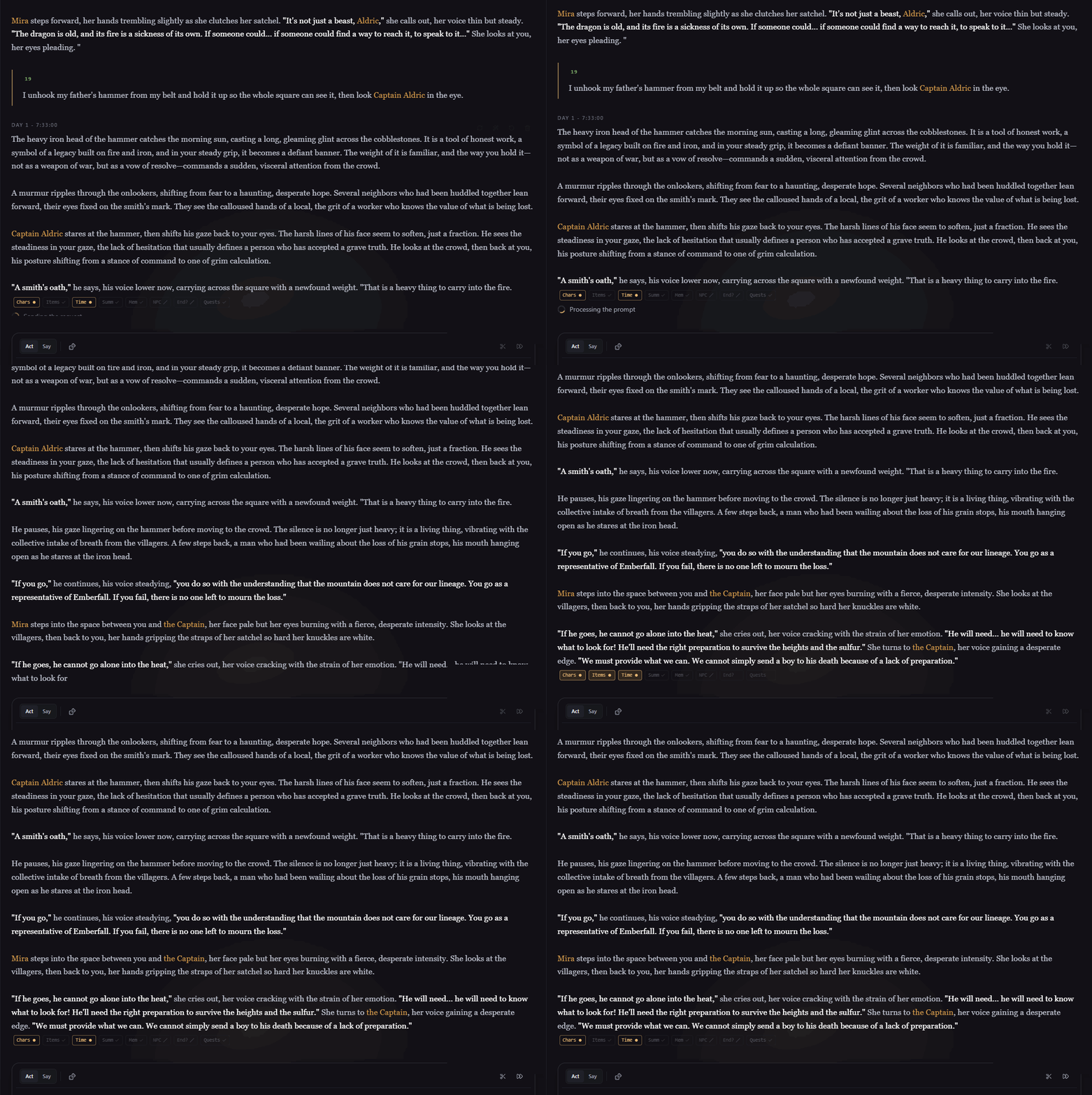
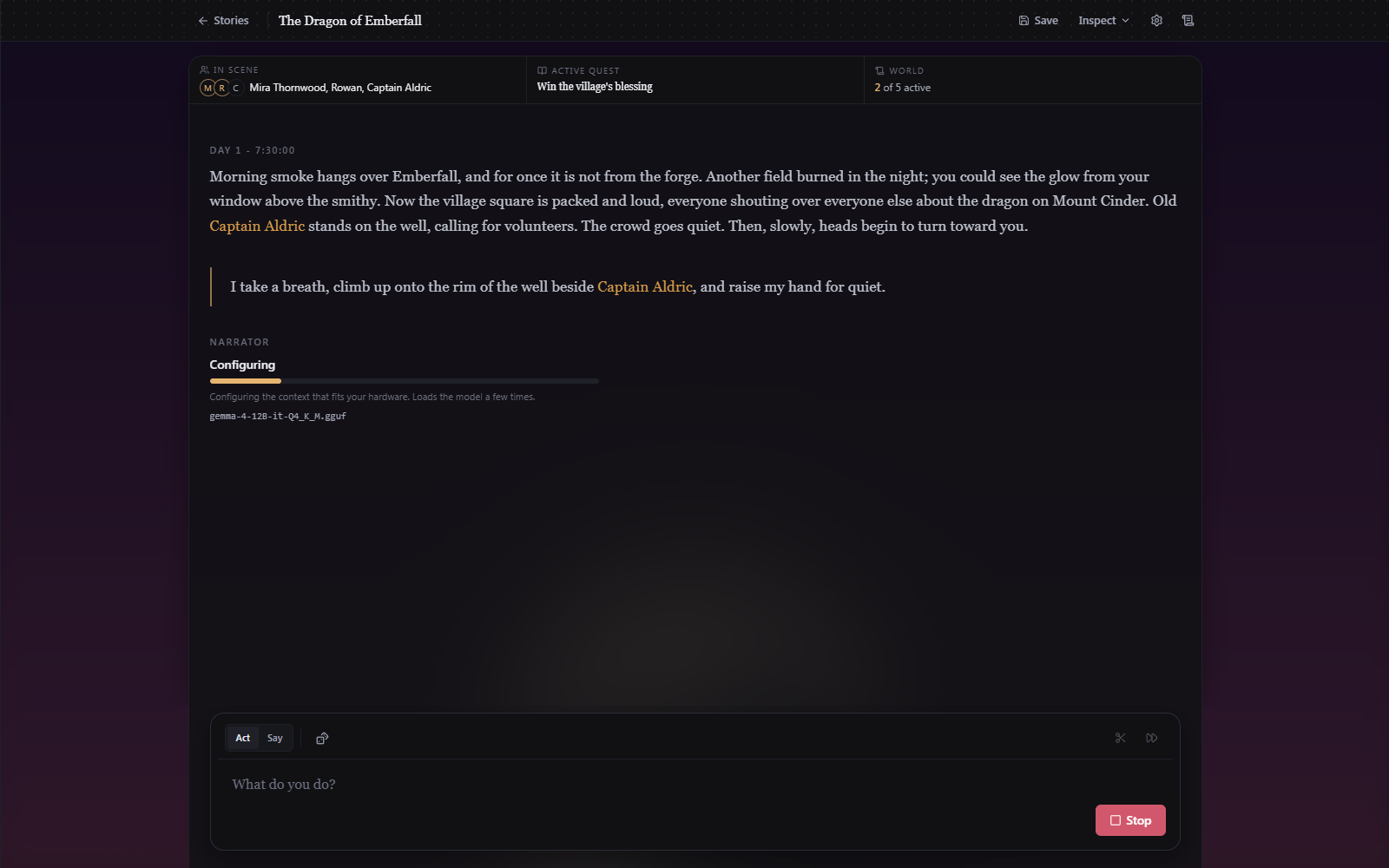
The reply streams in under a Narrator label, word by word. Once the beat is completely finished, the message is stamped with the in-story time. If a local model has to load first, a card shows its progress and an estimate. You can click a character name in the prose to open that character's card.
Letting the story run and cutting a scene
Two more composer buttons move the story along. Continue lets the narrator keep going with no new input, so you can watch a beat or two unfold. Scene break asks for a wrap: the narrator proposes a closing line and three premises for what comes next, and the scene actually ends when you pick one (see Steering the story).