
AI models
The narrator is a language model, and Plottery runs it on your own computer. The app suggests one you can install in a click, and you can swap it, add your own, or connect an external server at any time. You manage models under Settings > Model library and choose which model is used for what under Settings > Connection.
Recommended models and automatic downloads
On a fresh install a welcome screen offers recommended chat models. Each is listed with the option to select quantization. Quantization is a way to shrink a model's file size, which can make it fit in less VRAM but may reduce quality. The app shows a Fit meter for each option, and a Best fit badge on the largest one the app measured to fit your VRAM with some room to spare.
Download and continue starts downloading the chosen model in the background and takes you into the app. From the same dialog you can also skip downloading, and go to browsing all models in the Hugging Face browser or connecting an API server instead.
Everything else installs automatically: the inference engine, the embedding model used for memory, and the voice models.
The model library
Settings > Model library is where you manage models. You can:
- Search Hugging Face and download any GGUF model in the app. Each file shows its size and how it fits your VRAM and RAM.
- Import a file you already have on disk.
- Link your own folders (for example one shared with LM Studio), so models you keep there show up in the library. Downloads and imports go to the app's own folder. Removing a linked folder stops tracking it without deleting any files.
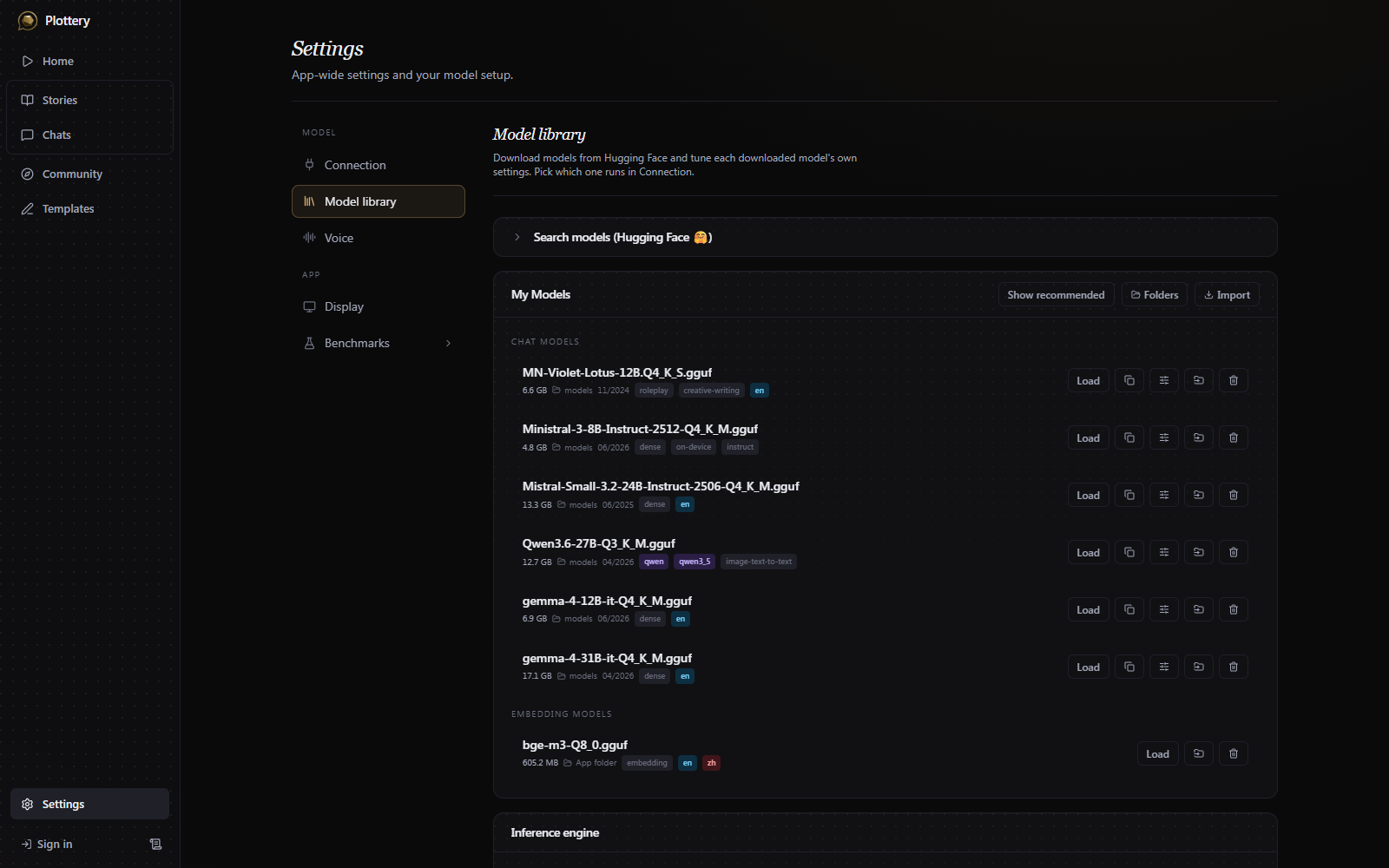
Models are sorted into chat (writes the story), embedding (memory recall), and other (files that can't run on their own, like a vision projector or a LoRA adapter). Chat and embedding rows load or unload the model, and a chat row has a settings icon for its own tuning. An "other" row can only be deleted.
Fitting a model to your hardware
There is no single spec that makes Plottery playable. Your VRAM is split three ways, and only you know how you want to spend it:
- How smart the narrator is. Generally a larger model, or a less aggressive quantization of the same one, writes better prose and follows instructions more reliably.
- How much story it holds at once. The context window is the second use of your VRAM. A big model with a short context window forgets earlier turns sooner than a smaller model with a longer window. To make full use of a longer window, also set the summarizer to trigger at higher message counts, in the story settings of each story.
- How fast the reply comes. Bigger models are slower. Anything that doesn't fit in your VRAM spills to the CPU, which is a lot slower. Because of this, running a model that doesn't fully fit in your VRAM is not recommended.
The app recommends a model that fits in 45% of your VRAM, leaving the rest for context. You can still download and run a file the app wouldn't have recommended; the fit meter shows the tradeoff. New, better models come out often, so the recommended model may become outdated. You can use the benchmark to compare how different local models handle the game's tasks.
Model settings are stored per model. In the settings window a live meter shows how much VRAM and RAM a configuration needs and warns when layers would spill to the CPU.
Parallel slots
A turn is more than the storyteller's reply: background tasks like summaries and tracking run next to it. Parallel slots set how many of these tasks can run at the same time. The context window is one block split evenly between the slots, so the slot count does not change how much VRAM is used. More slots run more tasks at once, but each task gets a smaller share of the window.
The default is 9 slots:
| Slots | Used for |
|---|---|
| 1 | The storyteller |
| 6 | The background tasks, one each |
| 1 | One-off requests, such as rework and the editor's generate helpers |
| 1+ | Character thoughts: one slot shared by the whole party, or one per character if you add slots |
Each task gets its own slot because a slot keeps the prompt cache of the task that last used it. When the same task runs there next turn, the model only reads the text that is new since last time, which is much faster than reading the whole prompt again.
Giving each party character its own slot speeds up their thoughts in a larger party, but every added slot shrinks every task's share of the context window. One slot shared across all characters is the default.
With fewer slots than tasks, llama.cpp assigns slots on its own and tasks overwrite each other's caches, so prompts get re-read on most turns and everything slows down.
Choosing where a model runs
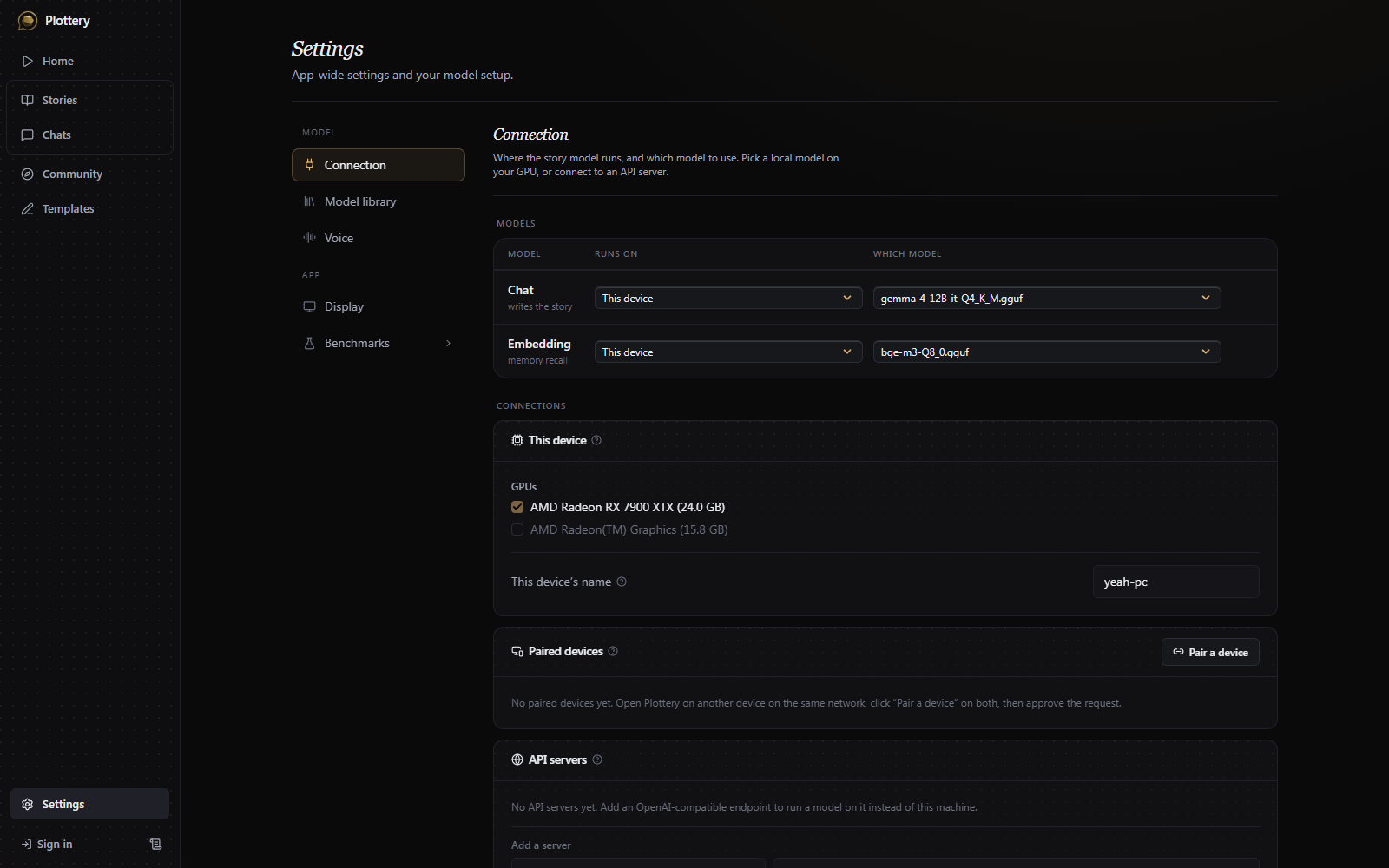
In the "Connection" tab you set where the chat model and the embedding model run. A model can run on:
- This device, on your own GPU.
- A paired device, using another computer's GPU over your local network.
- An API server: any OpenAI-compatible endpoint (LM Studio, Ollama, OpenAI, OpenRouter), whether it runs in the same network, or in the cloud. Add a base URL and optional key.
Running the AI on another computer
If you play on a light laptop but have a stronger desktop nearby or connected to the internet, you can pair them so the model runs on the desktop and only the generated text is streamed back. Open Pair a device on both machines (they must be on the same network, but you can also use Tailscale or similar tools), click Pair on one, and approve the request on the other. Once paired, pick the other device in the models menu at the top in the "Runs on" section.
Keeping the engine up to date
Local models share one inference engine (llama.cpp, with GPU acceleration: Metal on macOS, Vulkan on Windows and Linux). It installs automatically the first time and checks for a newer build periodically. When there is one, the engine panel in Settings > Model library says so and offers to update in a click. The same panel lists past releases if you'd rather pin a specific version. A new version can break compatibility with some models.