
Rework with instructions
Rework modifies something that already exists instead of writing it again from scratch. You tell the model what to change about the text, and it proposes a new version.
You can find wand icons around the app next to text boxes. Click one to open the rework dialog, which shows the text and lets you give instructions for how to change it.
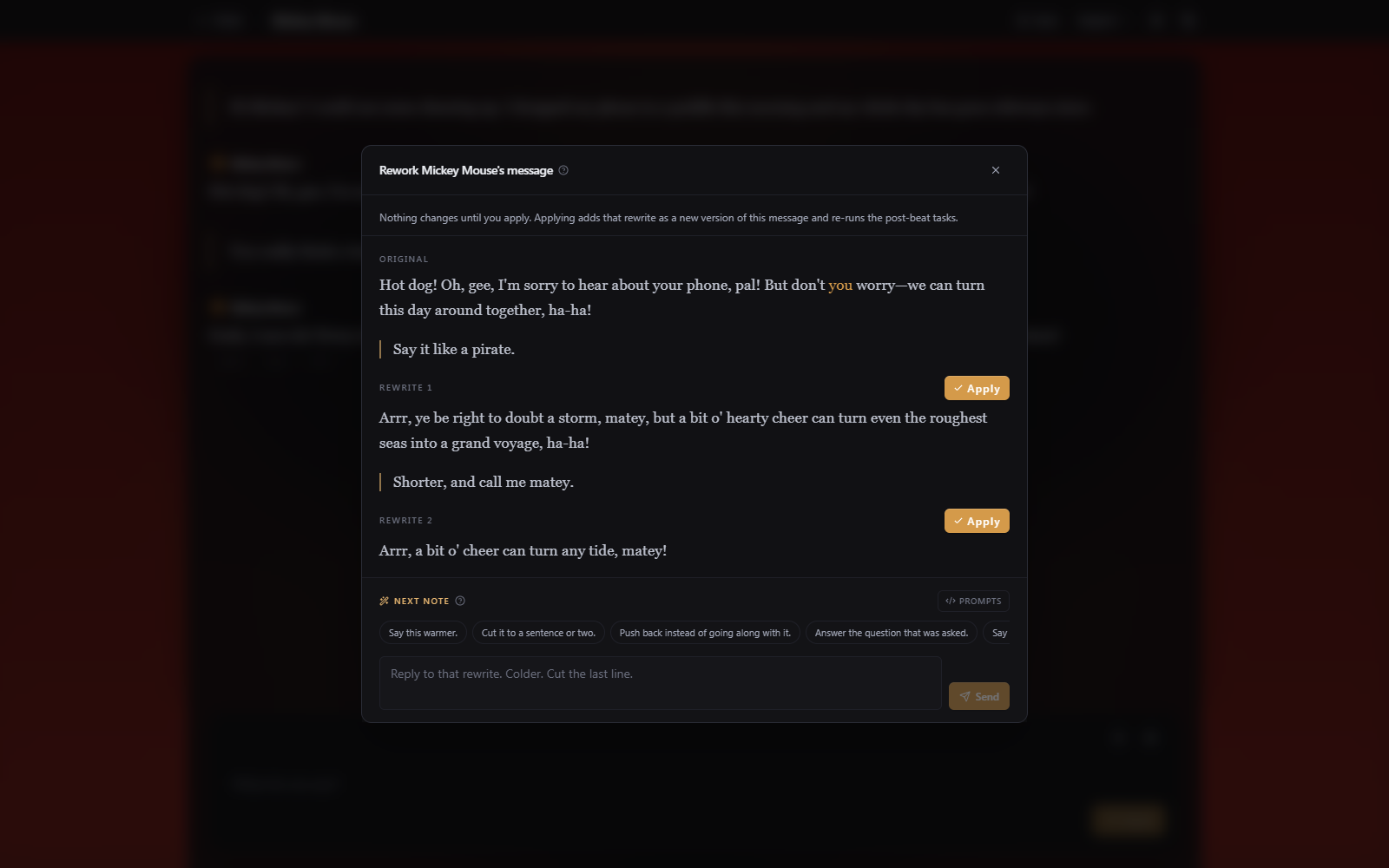
How a rework goes
Type an instruction, or pick one of the presets. The model answers with a proposal. You can accept it or give another instruction. Rework behaves like a conversation, where each instruction refines the previous result.
Apply: On a story beat or a chat message it adds the rewrite as a new version, so the original stays reachable through the version arrows. In the scenario editor it becomes an unsaved draft edit, which still needs saving like any other change.
A Prompts toggle shows the exact system and user text being sent for that run, and lets you edit it before sending. The edit applies to that run only. Editing the prompt is a last resort for when instructions alone don't get what you want.
Rework and regenerate are different tools
Regenerate throws the text away and writes the beat again from the same starting point. Use it when the reply went somewhere you don't want at all.
Rework keeps the text and changes it. Use it when the beat is mostly right and one thing is wrong: a name, the pacing, a character who is being too forthcoming.
Reworking a whole template
The scenario editor has a larger version of the same idea. Rework on a template applies change instructions to the whole template, for example pushing the tone darker across every part of it at once, and writes the result to a new copy. The original is not changed. Unlike the per-item rework, this one is a single pass rather than a back-and-forth.